How to Create LinkedIn Carousel Posts That Get Engagement
The step-by-step guide to creating carousels people actually swipe through, engage with, and share.
LinkedIn carousels consistently outperform every other content format on the platform. According to LinkedIn's own data, carousel posts generate 3x more engagement than standard text posts and 1.5x more reach than image posts.
But here's the problem: most people create carousels that get ignored. They spend hours in Canva, struggle with design, write weak hooks, and end up with something that looks like a PowerPoint from 2009.
This guide breaks down the exact process for creating LinkedIn carousel posts that actually drive engagement — from the hook that stops the scroll to the CTA that gets the comment.
Why LinkedIn Carousels Work So Well
Before we get into the how, let's understand the why. LinkedIn carousels work because of three psychological triggers:
- The curiosity loop: Each slide creates a micro open loop that pulls readers to the next one. It's the same mechanism that makes Netflix binge-worthy — "just one more slide."
- Lower cognitive load: One idea per slide is easier to process than a 300-word wall of text. Your brain doesn't have to work as hard, so you stay engaged longer.
- Dwell time signal: LinkedIn's algorithm rewards content people spend time on. Swiping through 8-10 slides takes 30-60 seconds — that's a massive dwell time signal compared to a text post someone reads in 5 seconds.
Step 1: Start With a Scroll-Stopping Hook
Your first slide is the only one LinkedIn shows in the feed. If it doesn't stop the scroll, the rest of your carousel is invisible.
The best hooks follow one of three proven patterns:
The Curiosity Hook
Open a loop that can only be closed by swiping. Example: "I analyzed 500 viral LinkedIn posts. Here's the one pattern they all share."
The Contrarian Hook
Challenge a widely-held belief. Example: "Posting every day on LinkedIn is killing your reach. Here's why."
The Problem Hook
Call out a pain your audience feels. Example: "You're spending 3 hours on each LinkedIn post and getting 12 likes. Let's fix that."
Pro tip: Write 5-10 hook variants before picking one. The difference between a good hook and a great hook is often the difference between 100 and 10,000 impressions.
Step 2: Structure Your Slides for Maximum Retention
The ideal LinkedIn carousel has 6-10 slides. Fewer than 6 and you're not providing enough value. More than 10 and people drop off.
Here's the proven slide structure:
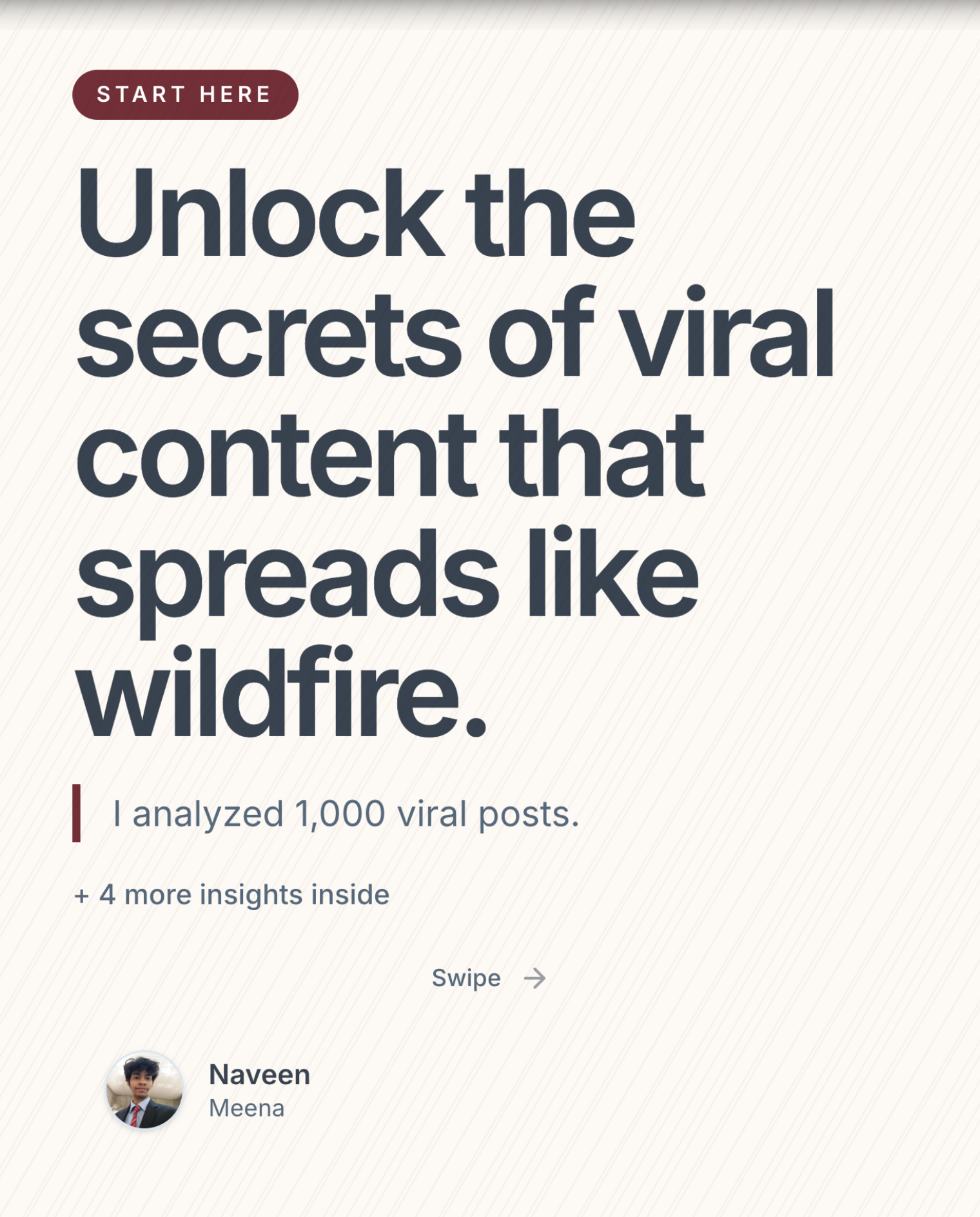
- Slide 1 — The Hook: Bold headline, minimal text, maximum curiosity. This is the "stop scrolling" slide.
- Slide 2 — The Context: Set the stage. Why should they care? What's the problem you're solving?
- Slides 3-7 — The Value: One idea per slide. Use headlines of 12-14 words max. Support with a short explanation (2-3 sentences).
- Slide 8 — The Summary: Recap the key takeaways in a quick bullet list.
- Slide 9/10 — The CTA: Tell them exactly what to do next. Follow, comment, save, or visit your link.
Step 3: Design That Doesn't Distract
Here's a secret most people miss: the best-performing carousels don't have fancy design. They have clean, readable design that puts content first.
Design rules for high-performing carousels:
- One font, two sizes: Use a large bold font for headlines and a smaller regular font for body text. That's it.
- High contrast: Dark text on light backgrounds or light text on dark backgrounds. No pastel-on-pastel.
- Consistent layout: Every slide should have the same visual structure. This builds a reading rhythm.
- White space is your friend: Cramming more text onto a slide doesn't add more value — it just makes it harder to read.
Step 4: Write a Caption That Drives Engagement
Your carousel's companion caption does two jobs: it gives LinkedIn's algorithm context, and it gives readers a reason to engage.
A high-performing caption formula:
- Repeat the hook (first 2 lines visible before "see more")
- Add a personal angle (why you made this carousel)
- End with a question (drives comments, which boosts reach)
Step 5: Export and Post at the Right Time
LinkedIn carousels are uploaded as PDF documents. The ideal file size is under 10MB, and each slide should be 1080x1080 pixels for crisp display on both mobile and desktop.
Best posting times for LinkedIn carousels:
- Tuesday-Thursday: 7:30-8:30 AM in your audience's timezone
- Avoid weekends: LinkedIn engagement drops 40-60% on Saturday and Sunday
- Be consistent: Post carousels at the same time each week so your audience expects them
The Faster Way: Use an AI Carousel Generator
If you've been spending 2-3 hours on each carousel using the "ChatGPT + Canva + export to PDF" workflow, there's a better way.
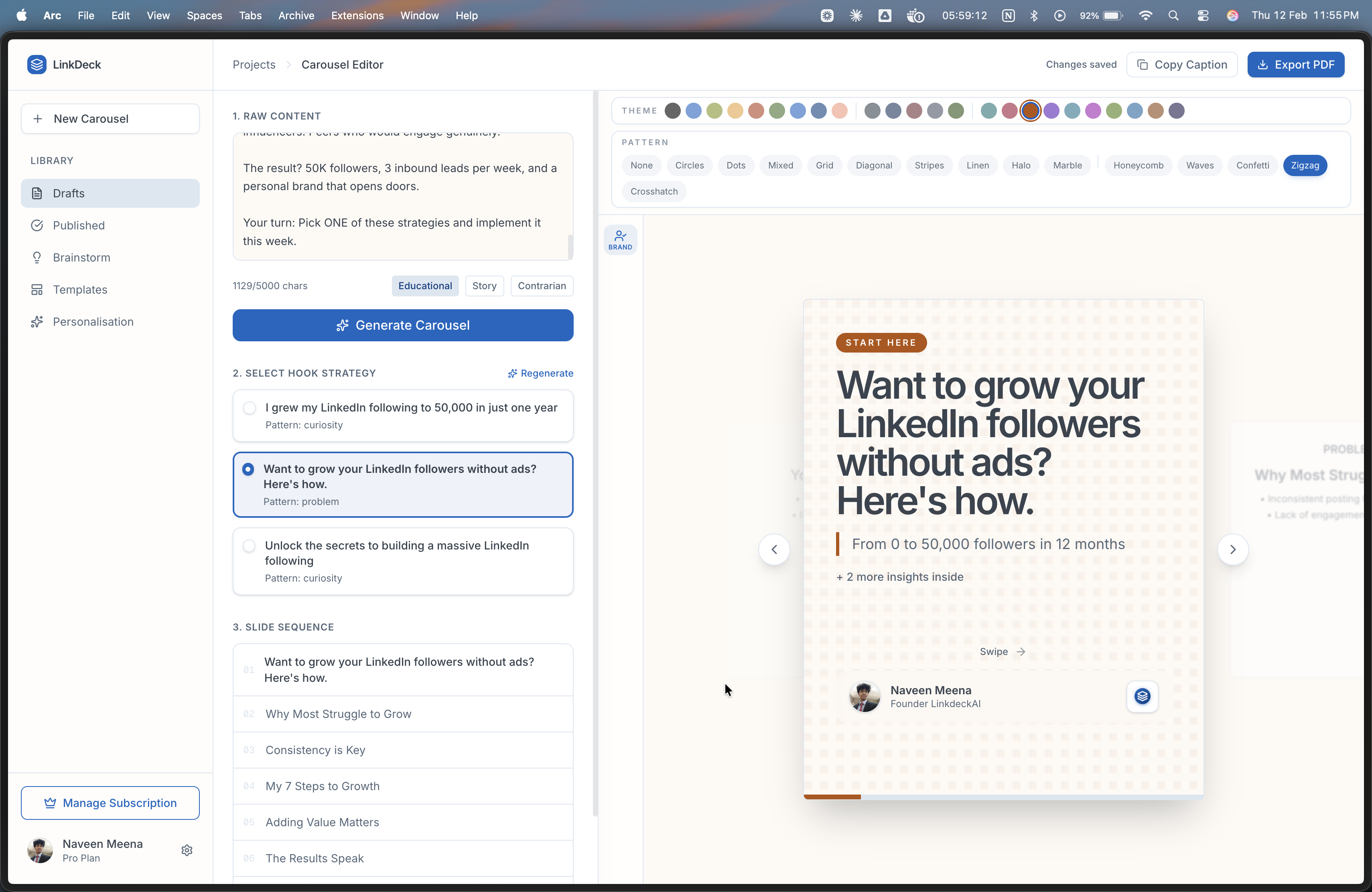
LinkDeck AI lets you paste your raw text and generates a complete LinkedIn carousel PDF in under 2 minutes. It handles the hook generation (with 3 proven variants), enforces editorial constraints (12-14 word headlines, one idea per slide), and exports a mobile-optimized PDF ready to upload.
No Canva. No design skills. No wasted hours. Just paste, pick your hook, choose a theme, and download.
Key Takeaways
- LinkedIn carousels get 3x more engagement than text posts
- Your first slide (the hook) determines whether anyone sees the rest
- Use 6-10 slides with one idea per slide and 12-14 word headlines
- Clean, consistent design outperforms flashy graphics every time
- Write a companion caption with a hook and question to boost comments
- Tools like LinkDeck AI can reduce your creation time from hours to minutes