LinkedIn Carousel PDF Maker: Create Stunning Carousels Free Without Design Skills
You don't need to be a designer to create professional LinkedIn carousels. Here's how to go from raw text to polished PDF in minutes.
If you've ever wanted to post LinkedIn carousels but felt held back by your design skills (or lack of them), you're not alone.
A recent survey showed that 68% of LinkedIn creators skip carousels entirely because they find the design process too time-consuming. They know carousels get more reach. They see other creators crushing it. But the gap between "having an idea" and "having a finished PDF" feels too wide.
The good news? You don't need Canva, Figma, or any design tool to create carousels that look professional and drive real engagement.
The Problem With Traditional Carousel Creation
The typical LinkedIn carousel workflow looks something like this:
- Write your content in a Google Doc or Notion
- Open ChatGPT to help structure it into slides
- Open Canva and pick a carousel template
- Manually copy-paste each slide's content
- Tweak fonts, colors, and alignment for 30+ minutes
- Export as PDF
- Upload to LinkedIn with a caption
Total time: 1.5 to 3 hours per carousel. For someone posting 3x a week, that's 4.5 to 9 hours spent on carousel production alone.
And the worst part? Half that time is spent on design decisions that have minimal impact on engagement. Choosing between Helvetica and Inter won't make or break your post. Your hook will.
What to Look for in a LinkedIn Carousel PDF Maker
Not all carousel tools are created equal. Here's what separates a good LinkedIn carousel PDF maker from a mediocre one:
1. Text-First Input
The best tools let you paste raw text and handle the rest. You shouldn't need to manually create each slide. The tool should intelligently break your content into the right number of slides with properly formatted headlines and body text.
2. AI-Powered Hook Generation
Your first slide determines everything. A great carousel maker generates multiple hook variants using proven patterns — curiosity, contrarian, and problem-based hooks — so you can pick the one that hits hardest.
3. Built-In Editorial Constraints
The best carousels follow strict rules: 12-14 word headlines, one idea per slide, 6-10 slides total. A good tool enforces these constraints automatically so you don't end up with a 20-slide carousel where each slide has 3 paragraphs.
4. Mobile-Optimized Output
Over 60% of LinkedIn browsing happens on mobile. Your carousel needs to be readable on a 6-inch screen. This means large fonts, generous spacing, and layouts designed for portrait mode.
5. One-Click PDF Export
The final output should be a PDF that's ready to upload directly to LinkedIn. No additional conversion steps, no weird file format issues, no quality loss.
How to Create a LinkedIn Carousel PDF in 3 Steps
Using LinkDeck AI, you can go from raw text to finished PDF in under 2 minutes. Here's the process:
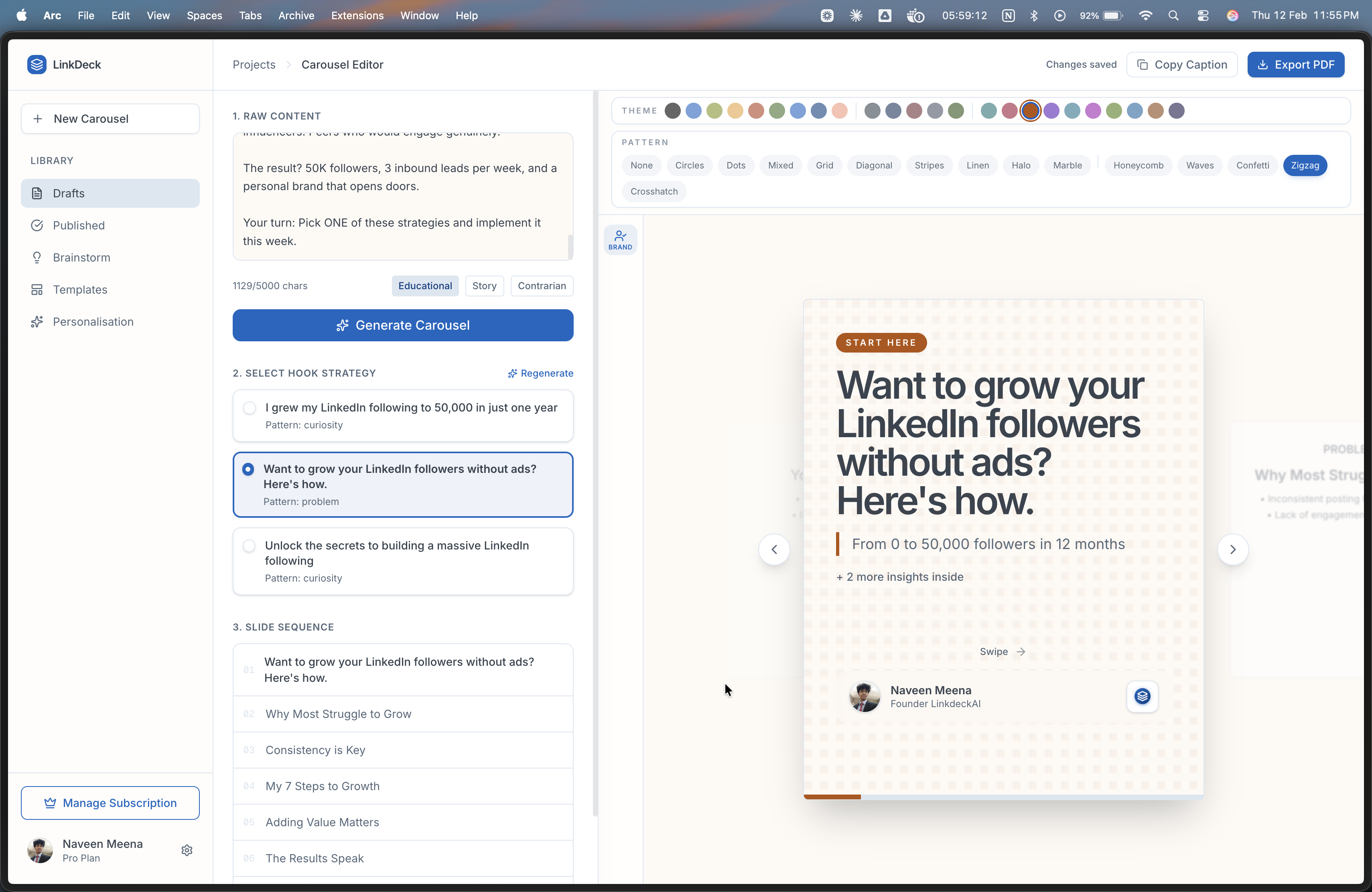
Step 1: Paste Your Content
Take your blog post, tweet thread, newsletter, or raw notes and paste them into the editor. There's no minimum or maximum length — the AI adapts to your content.
You can also select a content type (Educational, Story, or Contrarian) to tell the AI how to structure your slides. Educational carousels use a Problem-Solution-Proof-CTA flow, while Story carousels follow a Hook-Challenge-Lesson-Outcome arc.
Step 2: Pick Your Hook
The AI generates 3 hook variants for your first slide. Each one uses a different engagement pattern. Review them, pick the one that resonates, and the carousel is assembled automatically.
Step 3: Choose a Theme and Export
Select from 24+ color themes and 15+ background patterns. Preview your carousel in both mobile and desktop views. When it looks good, hit export — you get a PDF plus a pre-written LinkedIn caption ready to copy-paste.
Free vs. Paid Carousel Makers: What You Actually Need
Most creators don't need a paid tool to start creating carousels. Here's a realistic comparison:
- Free tier (LinkDeck AI): 10 carousels per month, all content types, 3 hook variants, PDF export. This is enough for most people posting 2-3 carousels per week.
- Canva Free: Unlimited slides, but you're doing everything manually — writing, structuring, designing. No AI hook generation or editorial constraints.
- ChatGPT + manual design: Free if you have a ChatGPT account, but the workflow takes 10x longer and requires design skills for the visual output.
5 Common Carousel Design Mistakes (and How to Avoid Them)
1. Too Much Text Per Slide
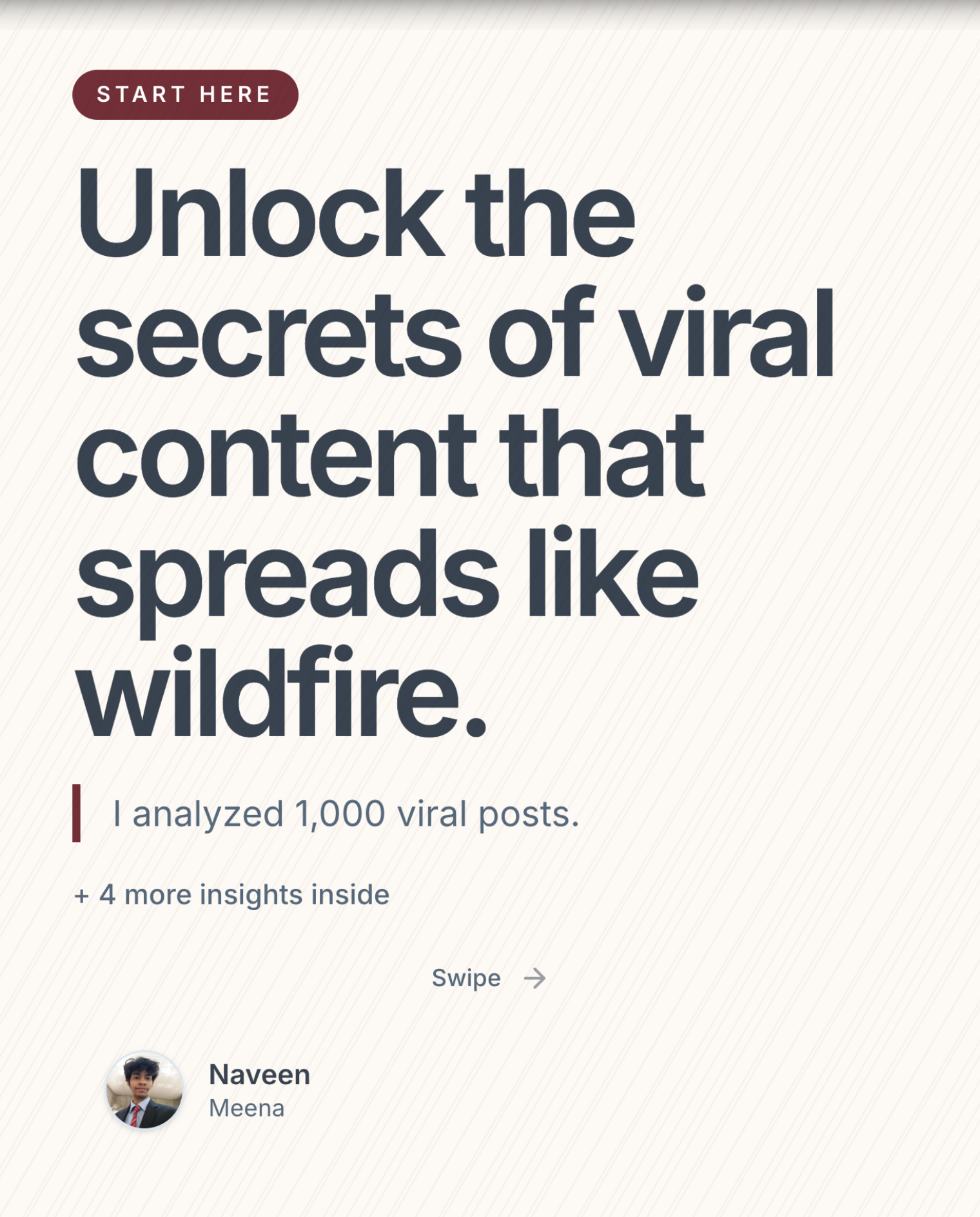
If someone has to squint to read your carousel on mobile, you've lost them. Keep headlines under 14 words and body text under 3 sentences per slide.
2. Weak or Missing Hook
A title slide that says "5 Tips for Better Marketing" is not a hook. A hook creates tension, curiosity, or emotional resonance. Compare: "I wasted $20K on marketing. These 5 lessons saved my startup."
3. Inconsistent Slide Design
When each slide looks different — different fonts, colors, layouts — it feels amateur. Consistency builds trust and creates a reading rhythm.
4. No Clear CTA on the Last Slide
Your last slide should tell the reader exactly what to do: follow you, comment their answer, save the post, or visit your link. Don't leave them hanging.
5. Ignoring the Caption
The caption is where LinkedIn's algorithm gets context about your post. A carousel with no caption or a one-line caption is leaving engagement on the table.
Key Takeaways
- You don't need design skills to create professional LinkedIn carousels
- The traditional Canva workflow takes 1.5-3 hours per carousel — AI tools cut that to under 2 minutes
- Look for text-first input, AI hooks, editorial constraints, and one-click PDF export
- Free tools like LinkDeck AI give you 10 carousels per month with full features
- Focus on your hook and content quality — not design perfection
Ready to create your first carousel? Try LinkDeck AI free — no credit card, no design skills, no friction.